Add equipment without blocking the work
Open Maintenance or Equipment and choose Add equipment. The location and a recognizable name are enough to begin. Add commercial name, model, serial number, service area, notes, or condition later.
“Main exhaust fan - East building” is already valuable even when the exact model or serial number is not known.
Create a recurring plan
- Choose Schedule work.
Desktop mode provides the larger calendar; the phone supports quick creation and review.
- Select location and equipment.
Equipment can remain optional for location-wide inspections.
- Write a specific task.
Use a title that will still be clear months later and instructions that describe the expected evidence.
- Set cadence and next due date.
Review the first date before saving. The maintenance agenda highlights upcoming and overdue work.
- Assign routing.
Use the relevant category or responsibility profile so the generated work reaches the correct queue.
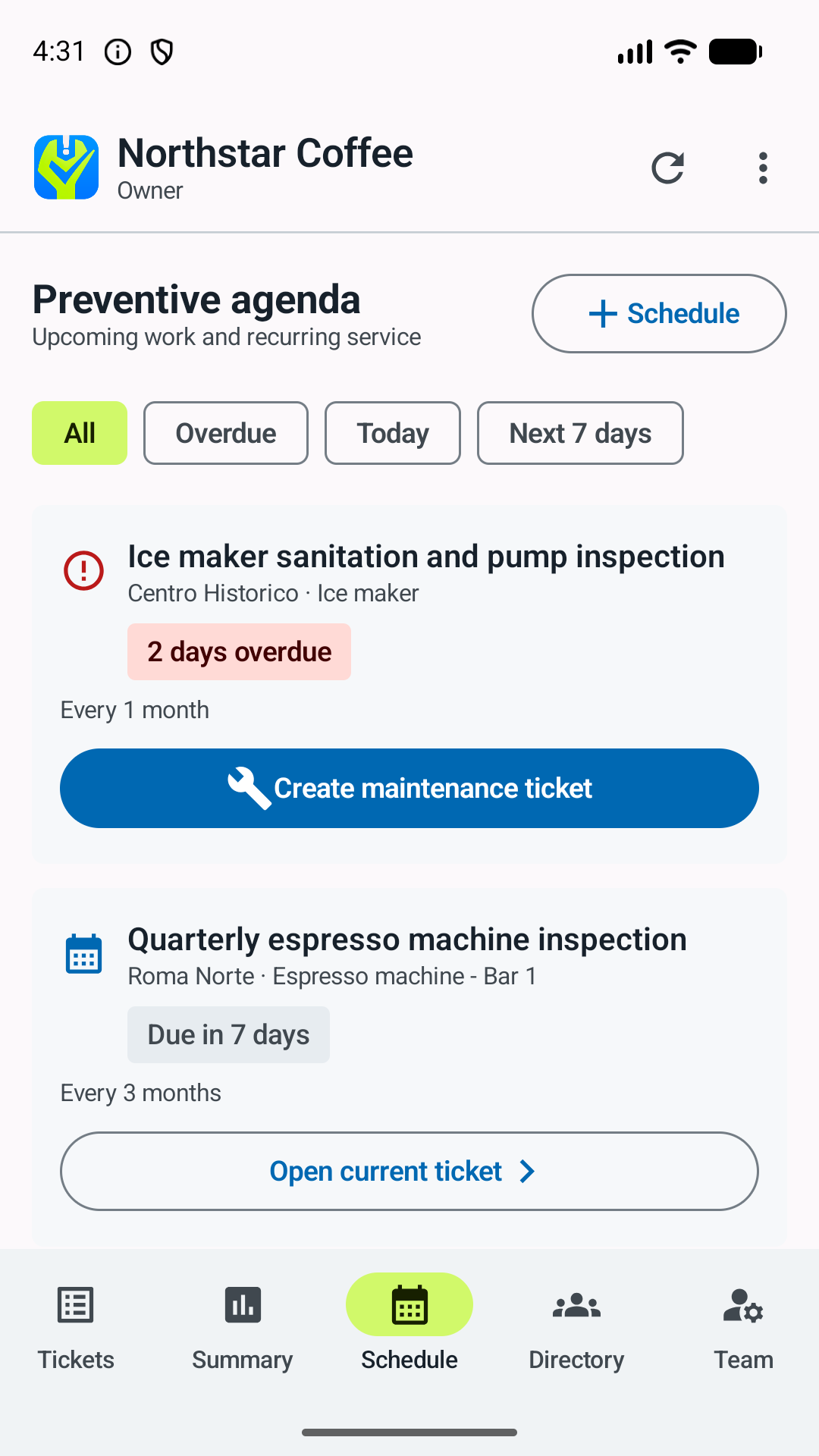
Work from the generated ticket
A scheduled item creates or opens a normal maintenance ticket. Technicians use the standard travel, arrival, evidence, costs, postpone, and completion workflow. Opening the equipment from the ticket reveals prior service context.
If work cannot occur, postpone the ticket with the reason. Do not delete the plan merely because one visit moved.
Use condition as a decision signal
- Normal: continue ordinary service.
- Watch: recurring symptoms or recent work deserve attention.
- Critical: failure risk or operational impact requires prioritization.
- Replace: repair history or condition suggests replacement planning.
Condition is a shared signal, not an automatic purchasing decision. Keep the service notes and recent ticket history as the evidence behind it.