Before leaving
- Start your shift if your organization uses shifts.
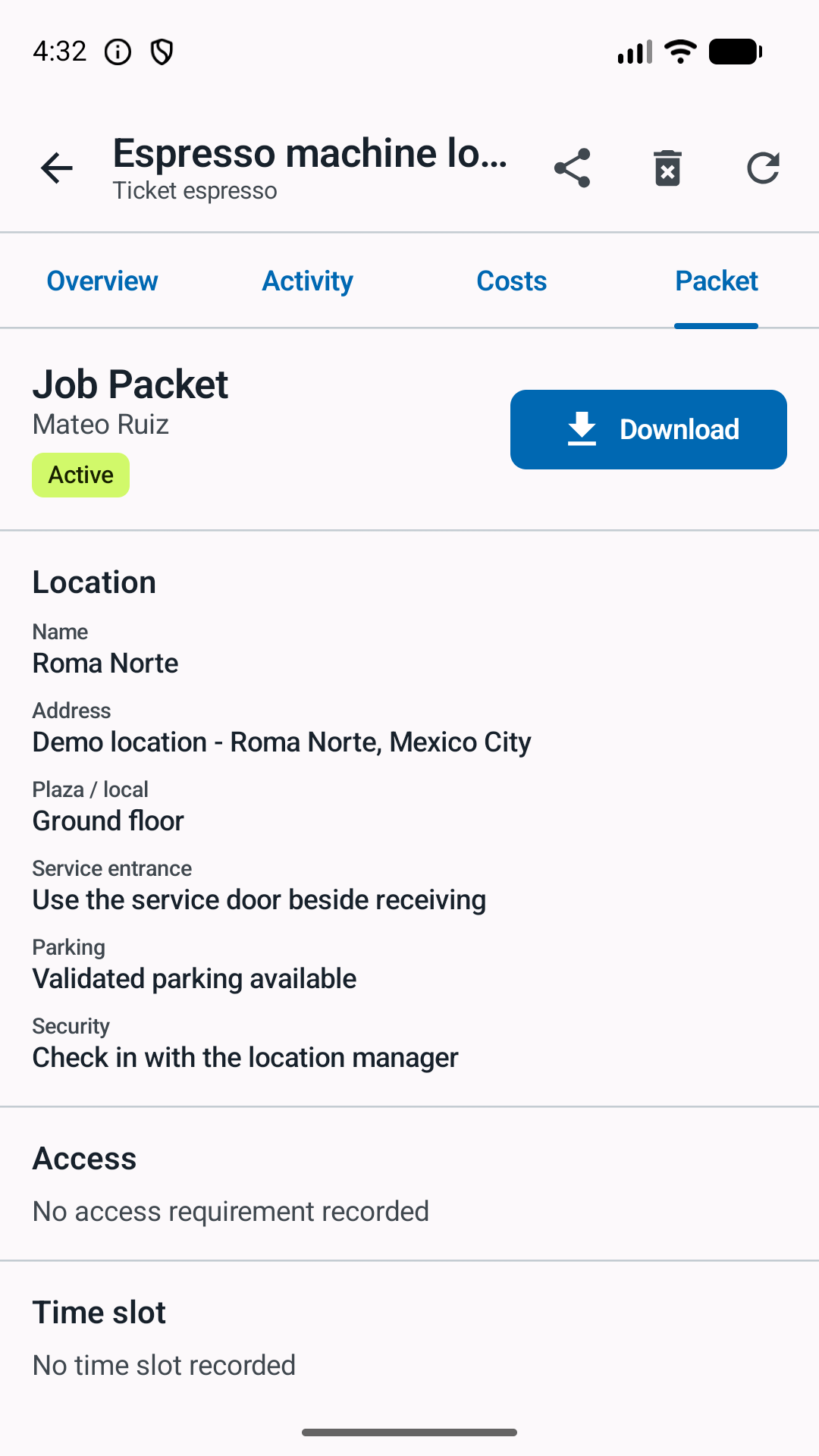
- Open the assigned ticket and review location, contact, access, equipment, previous service, and attachments.
- Mark On the way when travel begins.
- Call the location when access or operating hours are uncertain.
At the site
- Record arrival from the ticket. Location logging, when enabled, stores only the event snapshot.
- Confirm the reported symptom before changing equipment.
- Take a clear before photo when condition or installation matters.
- Add missing equipment model, serial, nickname, or condition only when known.
Record work and costs
- Add a short work note.
State what you found, what you changed, and the observed result.
- Attach useful evidence.
Take or select multiple photos. Camera originals remain in the device photo library; optimized WebP copies are uploaded.
- Add every material or expense once.
Choose material or expense. For material, choose supplied or purchased. Add quantity, description, amount, and proof when relevant.
- Add invoice files only when available.
Reveal the optional XML and PDF fields for fiscal invoices. A receipt photo can still support an ordinary purchase.
Diagnostics before continuing
This guide demonstrates Android 0.18.1. Google Play distribution of these controls has not been confirmed; your installed build may differ. Summary and report creation are Android features, not Desk Mode or portal features.
An ordinary note does not replace a structured diagnostic when evidence is needed to decide how to continue.
- An operational member can Request diagnostic and record the question or test scope. The request does not change status.
- Only the current assignee, from Work in progress, can Submit diagnostic for review. Complete summary, tests, findings, conclusion, operability and recommended action.
- Synchronize the submission. The ticket enters Diagnostic review; an owner or supervisor decides on the latest synchronized submission and records the rationale.
- The decision may continue repair or testing, pause, route to a specialist, plan replacement, or close without repair or because no fault was found. It does not claim a repair or replace completion approval.
Finish or postpone
When the job is complete
Use the next-step action, summarize the result, attach required closure evidence, and submit completion for approval.
When the job is not complete
Use Postpone and write the real blocker. The same ticket can record On the way and arrival again on the next visit.
“More units require replacement than reported; returning with the remaining material.” “Safe access is unavailable due to flooding.” “Replacement component ordered; expected Tuesday.”
End the shift
- Confirm no completed visit remains without a note or outcome.
- Check pending changes. Keep the app online until the queue clears when possible.
- End the shift. If routine notifications are silenced outside shifts, assigned emergencies may still alert you.
Workdesk does not continuously track a route. The daily activity map shows recorded shift and ticket-event snapshots only when the workspace enables location logging.