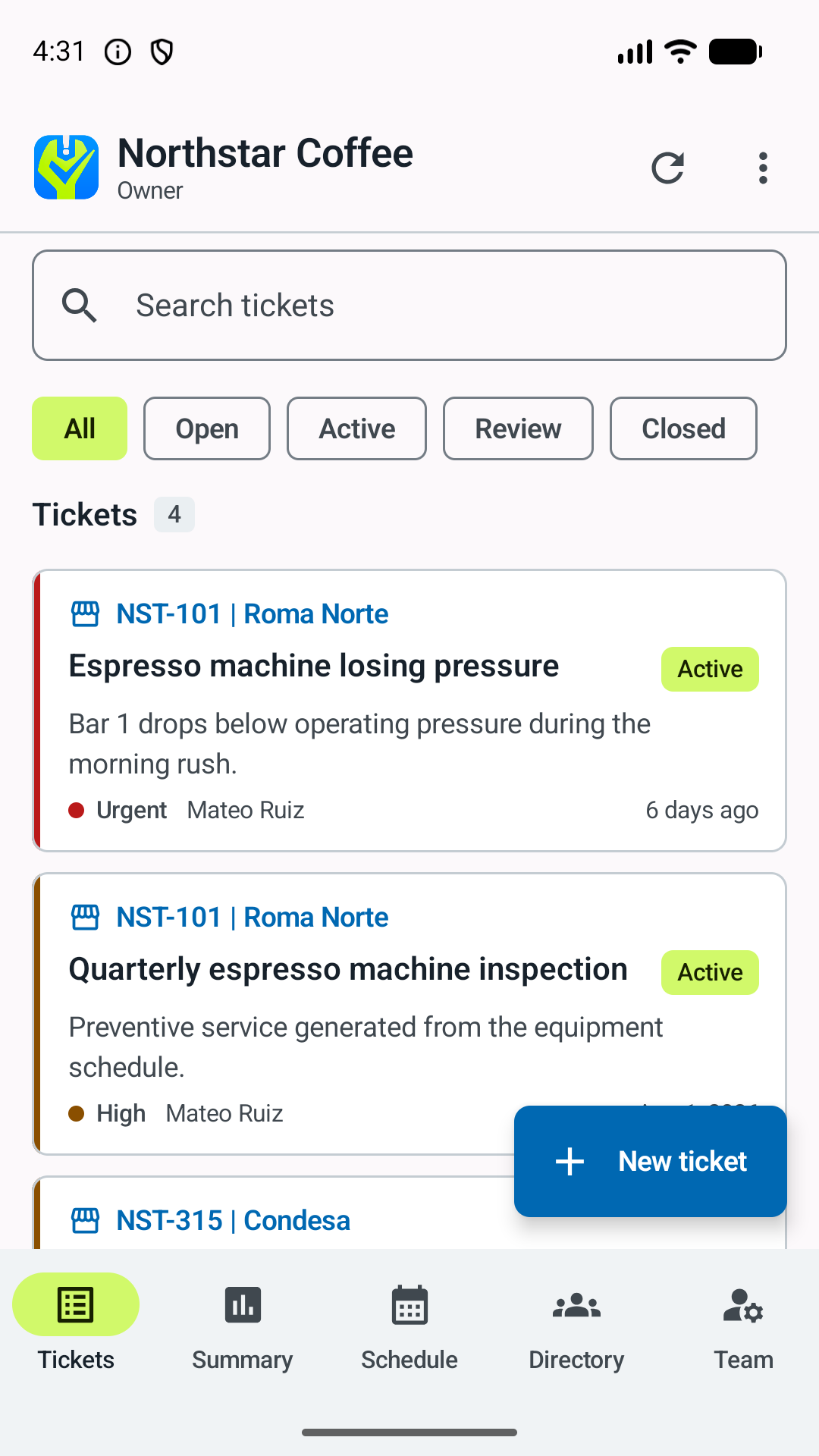
1. Report the issue
- Check Help and guides.
Use a safe workspace guide first when it covers the exact symptom. Create a ticket when the issue remains or the guide says to escalate.
- Choose the correct location.
This controls visibility, directory contacts, access notes, routing, and reports.
- Write for the next person.
State what is wrong, its operational impact, when it started, and what was already tried.
- Add context.
Select category, equipment, and priority when known. Attach clear photos or files; the app keeps camera originals on the device and uploads optimized copies.
Do not wait for a perfect report when there is smoke, flooding, electrical risk, food-safety risk, or an assigned emergency.
2. Route and coordinate
Responsibility profiles can send category-specific work to the right supervisor without filling every supervisor's queue. The coordinator can assign a technician, use an eligible field team, and designate an evidence reviewer.
- Assign: the named technician becomes responsible for field work.
- Claim: an eligible person takes responsibility from an open queue.
- Request follow-up: records that somebody must return with an answer or action.
- Reassign: transfers current responsibility without erasing earlier assignments.
3. Perform and document the work
- Start the shift when appropriate.
This records availability and can suppress routine notifications outside shift hours.
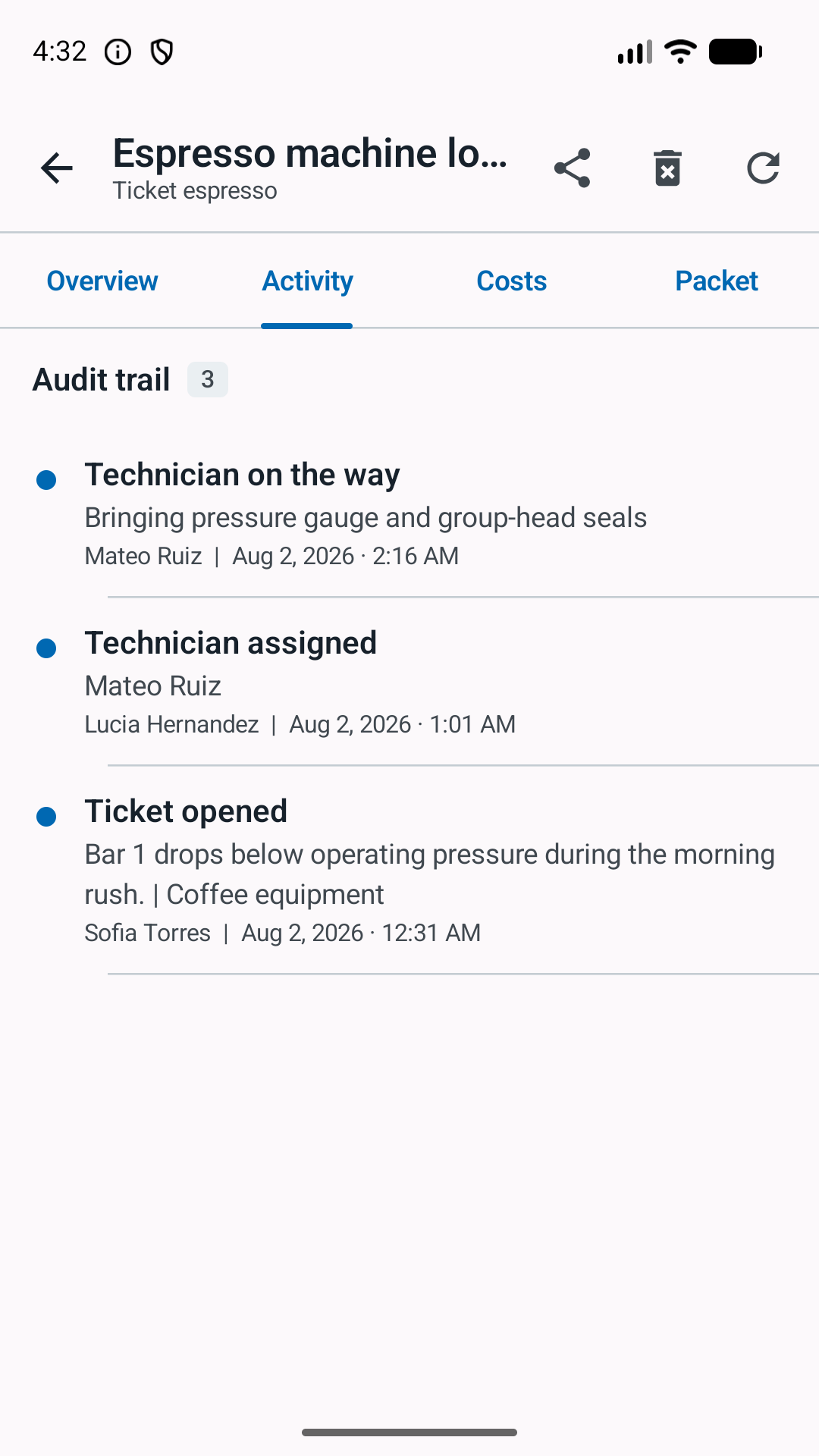
- Mark On the way.
The ticket records travel intent; assigned emergencies may bypass notification silence.
- Record arrival.
When location logging is enabled, Workdesk stores a snapshot for the event, not continuous tracking.
- Add evidence as work happens.
Use notes, multiple photos, files, equipment updates, materials, expenses, invoices, and follow-up reminders.
- Protect the financial record.
Classify material as supplied or purchased. Purchased material and other expenses can include receipt evidence plus optional XML and PDF invoices.
4. Pause and return another day
Use Postpone when the visit cannot finish. Add a short free-text reason such as incomplete material, access unavailable, equipment in use, weather, or safety conditions.
The ticket returns to an actionable state and can repeat On the way and arrival on the next visit. The previous visit remains in the timeline.
Resume the original so reporting, materials, travel, and completion remain one record.
Diagnostics before continuing
This guide demonstrates Android 0.18.1. Google Play distribution of these controls has not been confirmed; your installed build may differ. Summary and report creation are Android features, not Desk Mode or portal features.
An ordinary note does not replace a structured diagnostic when evidence is needed to decide how to continue.
- An operational member can Request diagnostic and record the question or test scope. The request does not change status.
- Only the current assignee, from Work in progress, can Submit diagnostic for review. Complete summary, tests, findings, conclusion, operability and recommended action.
- Synchronize the submission. The ticket enters Diagnostic review; an owner or supervisor decides on the latest synchronized submission and records the rationale.
- The decision may continue repair or testing, pause, route to a specialist, plan replacement, or close without repair or because no fault was found. It does not claim a repair or replace completion approval.
5. Close, review, or resolve remotely
- Work reported complete: the technician submits the outcome and required evidence.
- Closure approved: the authorized location member or reviewer accepts the result.
- On-site signature: when enabled by the owner, the technician can hand the device to the person who inspected the work. Their name, optional position or organization, acknowledgement, signature, and time become part of the closure record.
- Reopened: the result is incomplete or the problem returned.
- Confirmed remote resolution: an owner or supervisor records that guided action solved the issue when another approval step would add no value.
Workspace settings decide whether a closure photo or on-site signature is required. If nobody is available to sign, record the exception instead of inventing a reviewer. Remote resolution should be limited to states where the outcome can be confirmed safely.
Capture an on-site signature
The workspace owner can enable Require on-site sign-off in Workspace settings and save the change. Leave it off when normal completion review is sufficient. This setting controls the evidence collected before the technician submits completed work.
- Complete the work and its evidence.
In the ticket, record the work performed and any required closure photo. Use the on-site acceptance form when sign-off is enabled.
- Hand the device to the person who inspected the result.
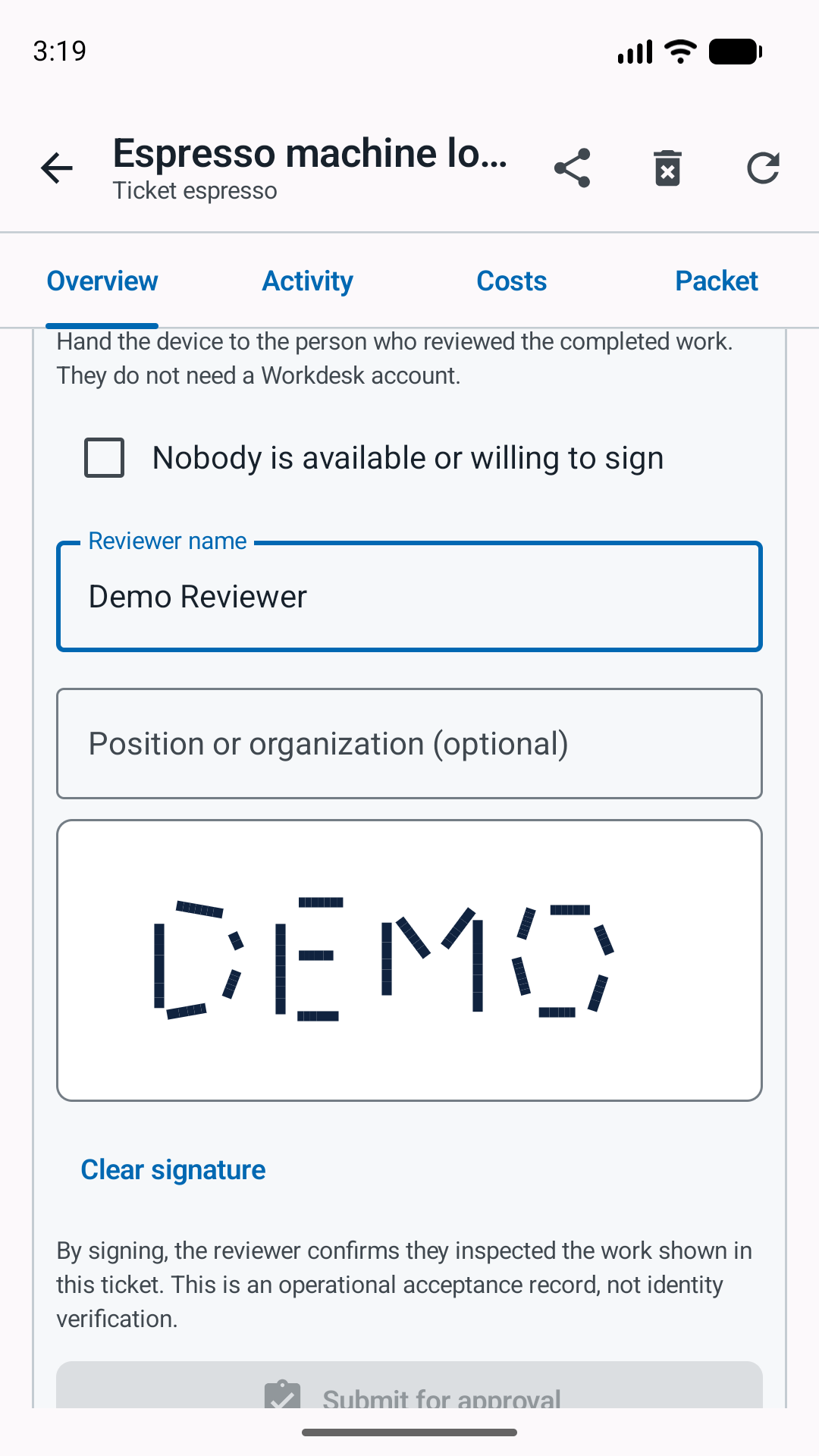
They do not need a Workdesk account. Enter their name in Reviewer name; Position or organization (optional) can explain their relationship to the location.
- Let the reviewer draw their own signature.
Ask them to read the acknowledgement and sign in the pad after checking the work. Use Clear signature if they need to try again. Do not sign for another person.
- Submit the completion for review.
Check the information and required evidence, then select Submit for approval. The signature supports the closure record; it does not replace the separate approval decision by an authorized account.
The record shows what was entered and submitted, by which account and when. A typed name and drawn signature do not verify legal identity and are not a general identity or payment signature.
If nobody is available or willing to sign
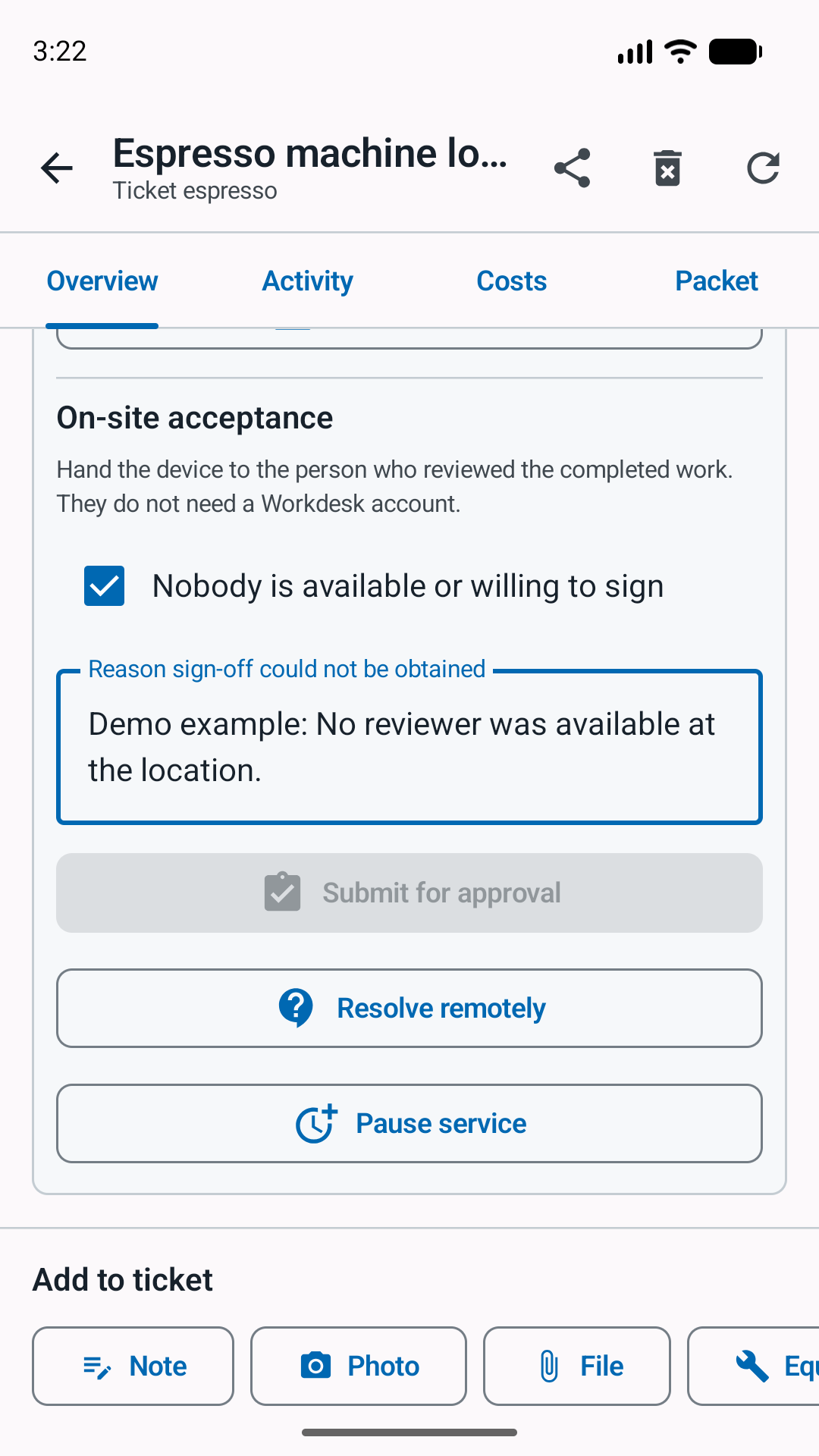
Select Nobody is available or willing to sign and enter the actual reason in Reason sign-off could not be obtained. For example, record that no reviewer was available at the location only if that is what happened. Do not invent a name, signature, or acceptance statement.
Submit the completion with its required evidence and exception reason. The recorded exception gives the authorized reviewer context for the next decision; it is not proof that someone accepted the work.
6. Remove a wrong or obsolete ticket
Authorized owners or supervisors can remove a ticket created in error, orphaned by organizational change, or tied to a location that no longer exists. Removal deletes ticket media and leaves an audit entry showing who removed it, when, and why.
If work occurred or the record has operational value, close it with the real outcome instead.